

The following information applies to these components

The Asset Viewer is a full-page component that displays a single media asset as the main content of a standalone page.
It provides optional controls that allow users to interact with the asset, such as opening a video in fullscreen, zooming into an image, or adding the asset to the basket.
Add an Asset Viewer Page
- Add a new page to the required section.
- Select Asset Viewer from the Component list and click
- The Asset Viewer page is added to the section.
- Click anywhere within the page to open the Choose Media page.
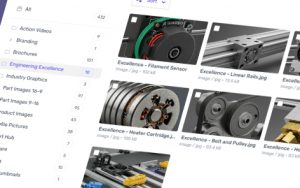
The Asset Viewer uses the standard Media Library picker, so you can select an existing asset from the Media Library or upload a new one.
Replace an Asset
To replace an already placed asset in the Asset Viewer click the button that appears.
Configure Video Playback
When the selected asset is a video, additional playback settings are available. To edit these settings open the and scroll down until you see Video Settings.
Depending on the available options, you can configure:
- Controls — toggles the visibility of the video’s playback controls.
- Fullscreen Option — toggles the visibility of the fullscreen button, allowing users to play the video in native fullscreen.
- Autoplay — toggles starting the video automatically when the page is displayed.
- Loop — toggles whether the video starts again automatically when it reaches the end.
- Muted — toggles whether the video player loads muted or not.
These settings only apply when the selected asset is a video.
Test the different combinations of settings in the experience to confirm that the video behaves as expected.
Enable Add to Basket
The Asset Viewer can expose an Add to Basket action for assets that can be added to the basket.
To enable this option open the and toggle Basketable under Features.
The usability of this action depends on Basket being enabled in the Experience’s Fulfilment Settings.