
The following information applies to these components
Theme Table styles define the colours and borders used by Table blocks. You can configure separate Primary and Alternative styles.
Open the Tables Tab
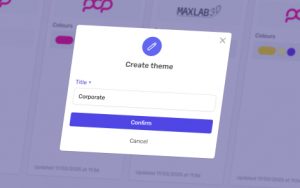
Navigate to Themes from the Admin Panel and open the theme you want to edit or create a new one.
Select the Tables tab from the Theme categories on the left. Primary settings will be displayed first and below that will be the Alternative settings.
Here you can configure for each style the background, text and border colours, and enable or disable the table borders.
Style Header Rows
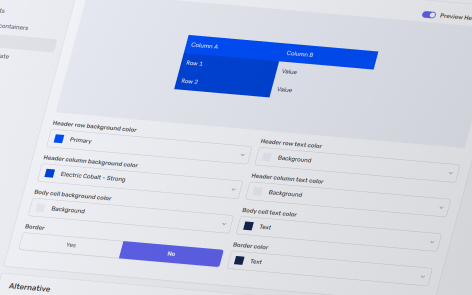
Configure the Header Row background and text colors. These settings control the appearance of cells in a table’s header row when header row styling is enabled on the Table block.
Style Header Columns
Configure the Header Column background and text colors. These settings control the appearance of cells in a table’s header column when header column styling is enabled on the Table block.
Preview Headers
Enable Preview Headers for the Primary or Alternative Tables to display the respective header styling in the theme editor preview.
This setting only changes how the table is displayed in the Theme preview. It does not enable header rows or columns in the Section Builder.
Apply the Style to a Table Block
Open a Table block and select the required Table Style to use the Primary or Alternative theme design.
Header styling is controlled separately on the Table block. Enable Header Row or Header Column on the block to apply the corresponding theme styling to the table.