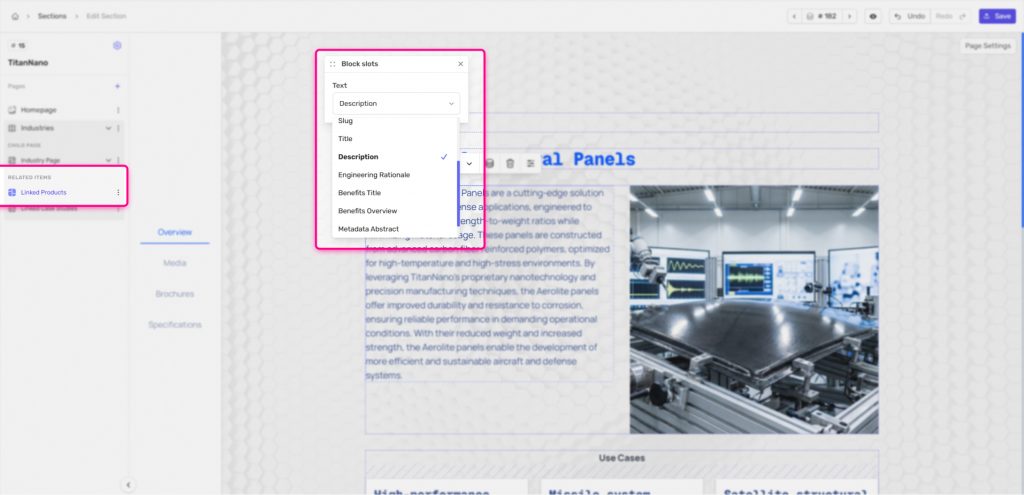
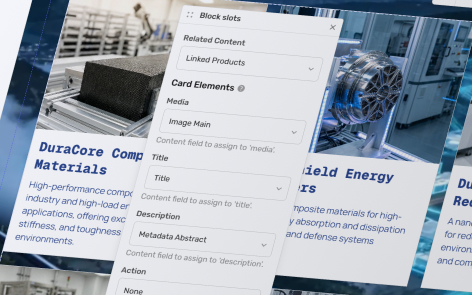
The following information applies to these components

The Related Items Grid allows you to build dynamic relationships between your content.

How it works
The example below shows a common use case.
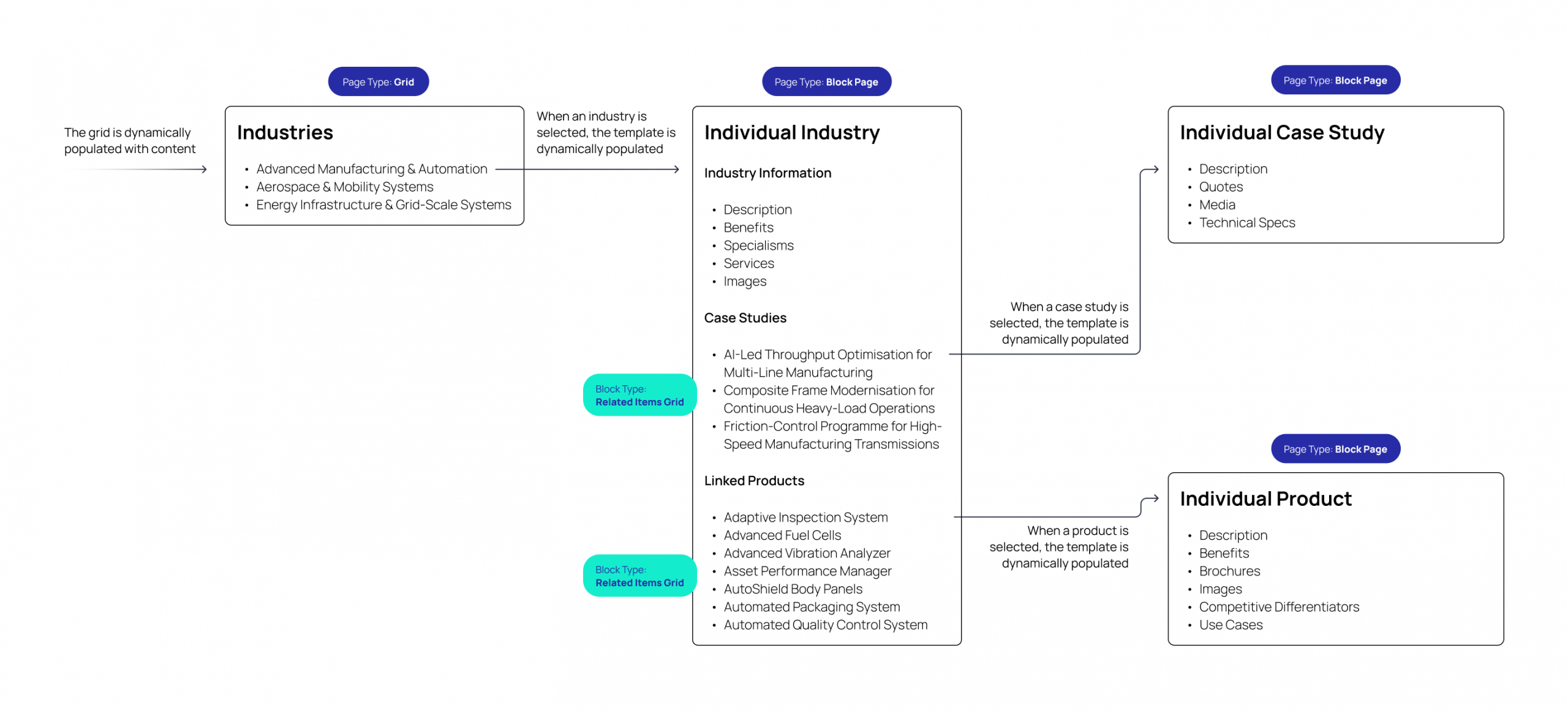
In this example:
- An Industries grid displays all industry items from a content group.
- Selecting an industry opens an Individual Industry block page.
- That page contains two Related Items Grid blocks:
- One displaying related Case Studies
- One displaying related Products
- Selecting a case study or product opens its own child page, which is automatically populated with the relevant content.
This creates a hierarchy like this:
Industry
 ├── Related Case Studies
 │     ├── Individual Case Study
 │     └── Individual Case Study
 │
 └── Related Products
       ├── Individual Product
       └── Individual Product
Before you begin
To use the Related Items Grid, you will need:
- A Grid page populated from a content group.
- A Block Page configured as the grid’s child page template.
- One or more Content fields within your content group that contain related items (for example, Products or Case Studies).
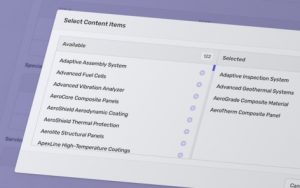
- Those related content fields populated for each item.
Adding a Related Items Grid
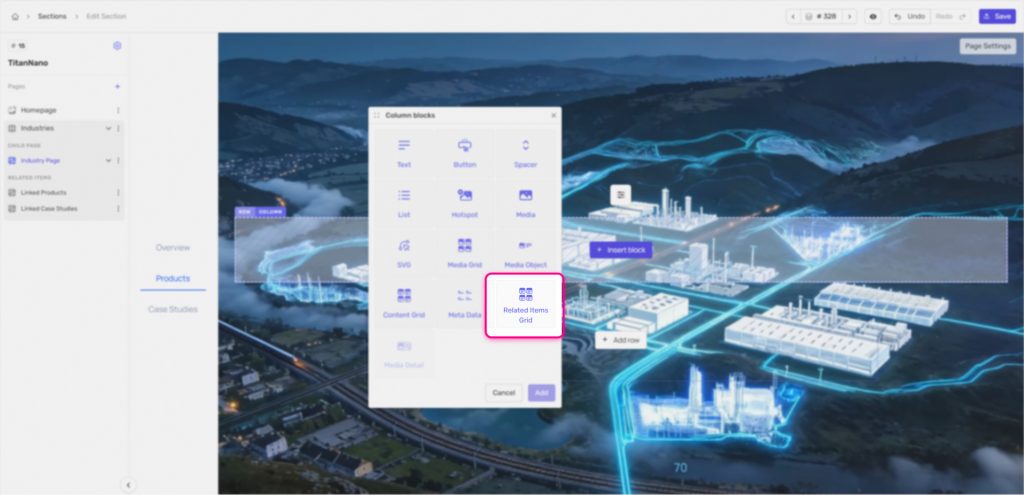
Open your block page and add a block to the page
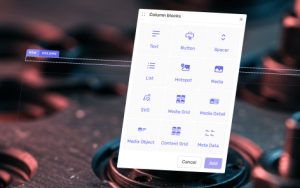
Insert a Related Items Grid block.
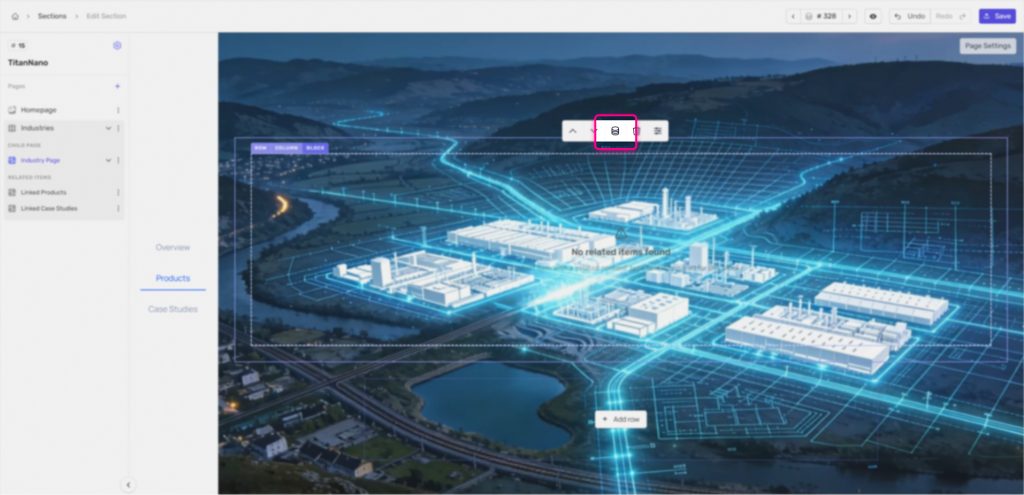
Ensure Block is selected, then click Attach Content.
Select the related content field you want to display (for example, Products or Case Studies).
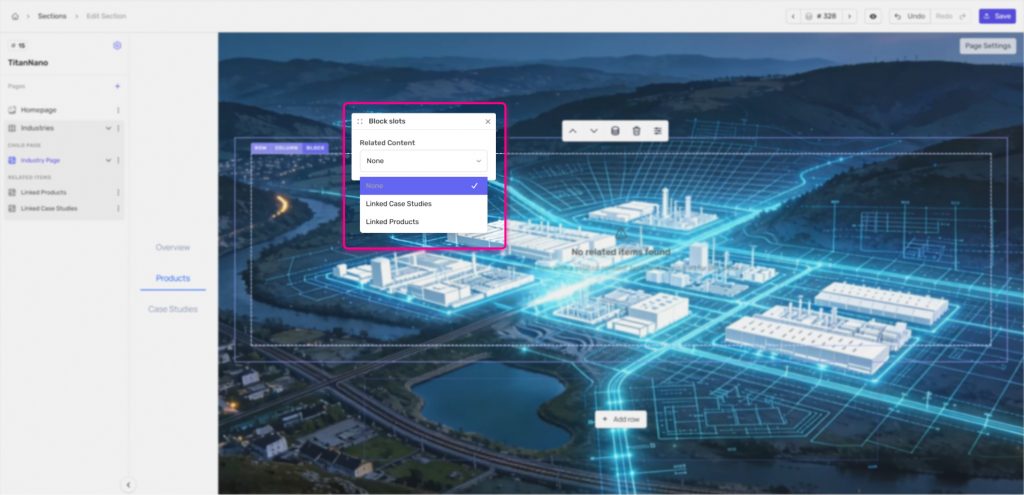
Choose which information should appear on each card, such as the image, title and description.
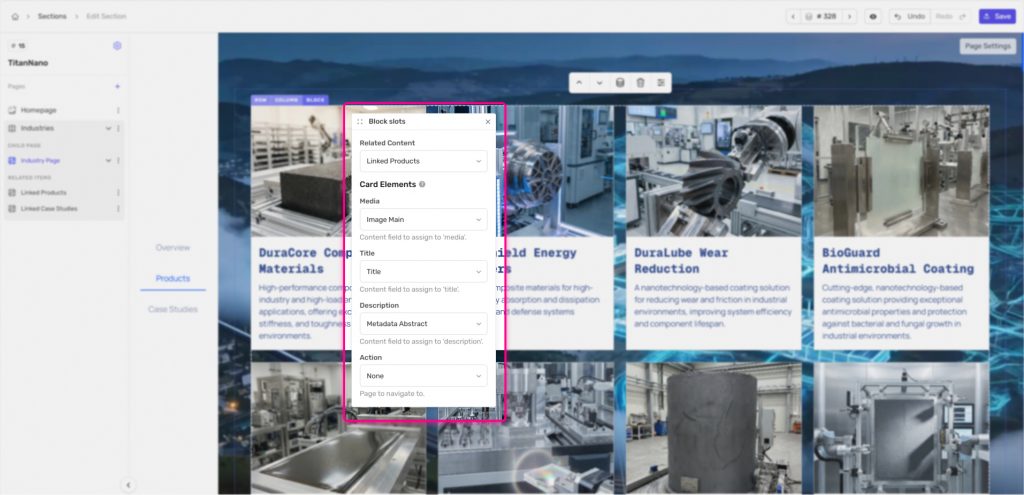
The block will automatically display the related items for whichever content item is currently being viewed.
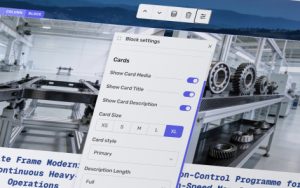
You can style the related items grid with several options available.
Creating detail pages
The above steps will add the grid of items, if you want to have a detailed page (e.g. a product page with specifications and resources), then you can add in a template page for this.
Select Action → Child Page Template to create a page that will be used whenever a related item is selected.
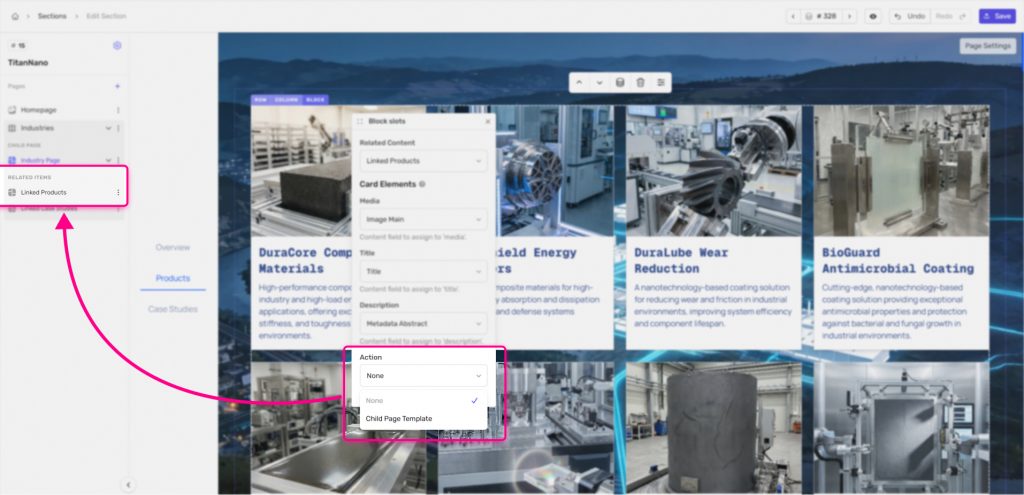
For example:
- The Industry page displays a list of related products.
- Selecting Adaptive Inspection System opens the Individual Product page.
- That page is automatically populated with the product’s own description, images, brochures and other fields.
The same approach can be used for case studies, services, documents, people, locations, or any other related content.
You can populate the template page by inserting any block, and ensuring Block is selected, then click Attach Content.
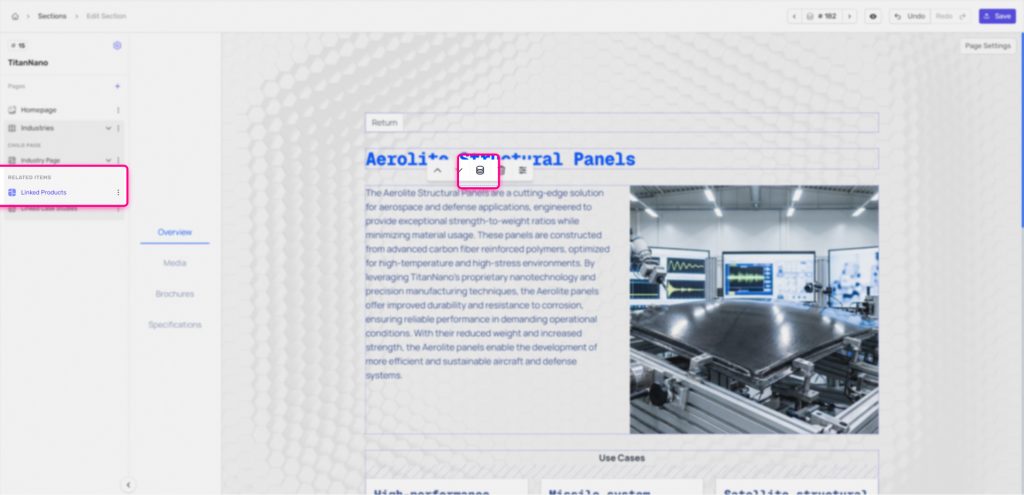
Then select any relevant field that is available. It will be dynamically populated when an item is selected.