
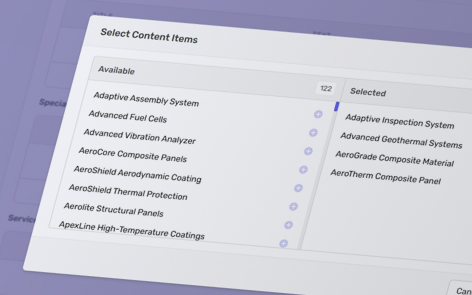
Related Content allows you to create links between items in different content groups. For example, you might want to link a case study to one or more products, or associate an industry with relevant case studies.
Creating a Related Content field
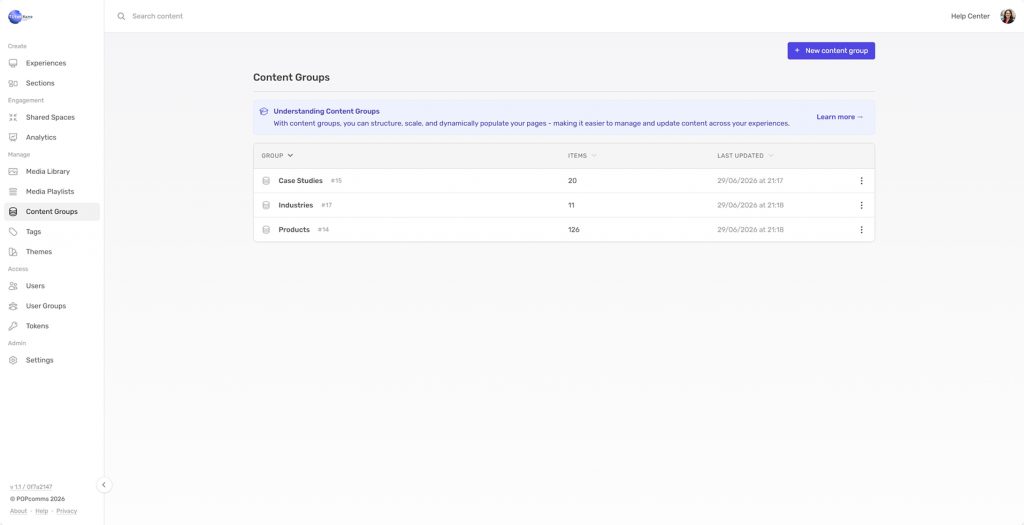
Open the content group where you want the links to appear (for example, Case Studies).
Select the tab Fields.
Then click New Field.
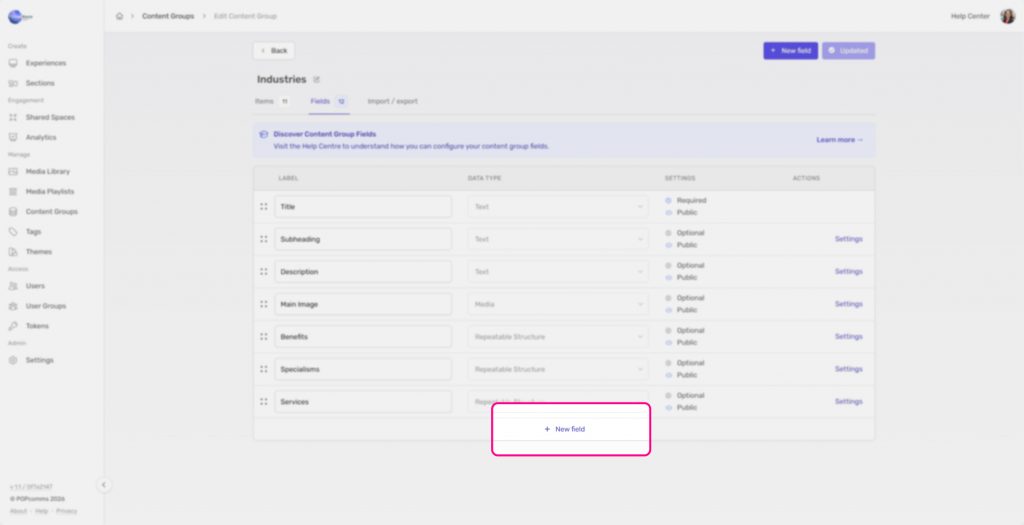
Choose Related Content as the field type.
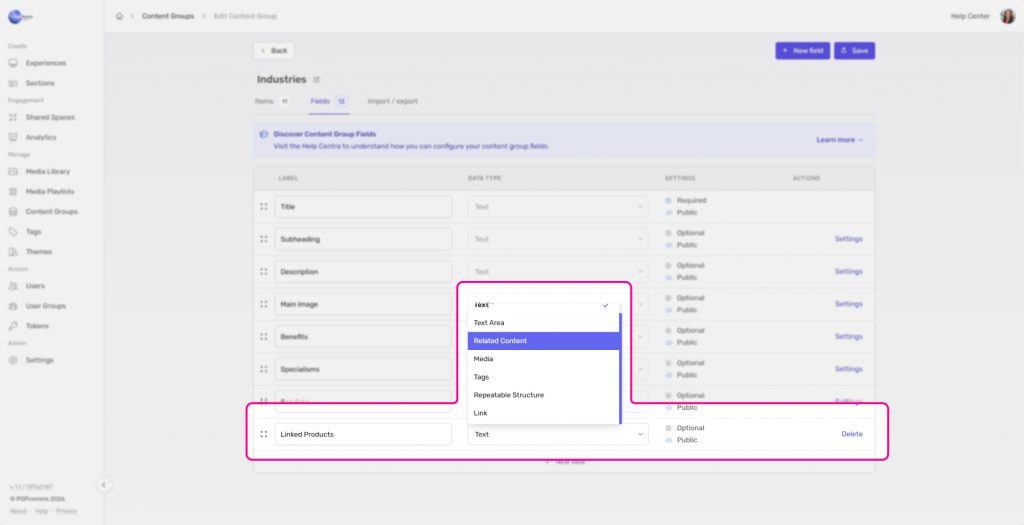
Enter a name for the field, such as Linked Products or Related Case Studies. Click Settings.
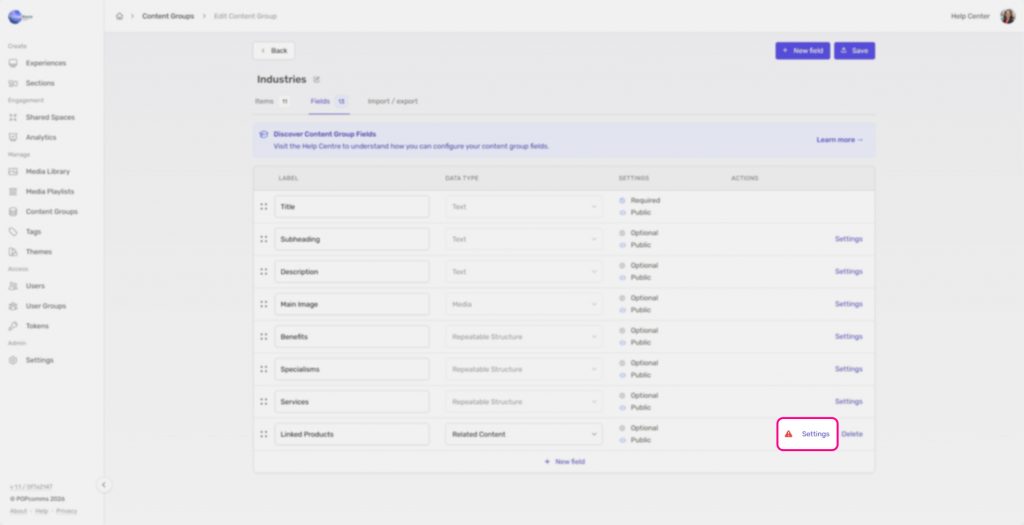
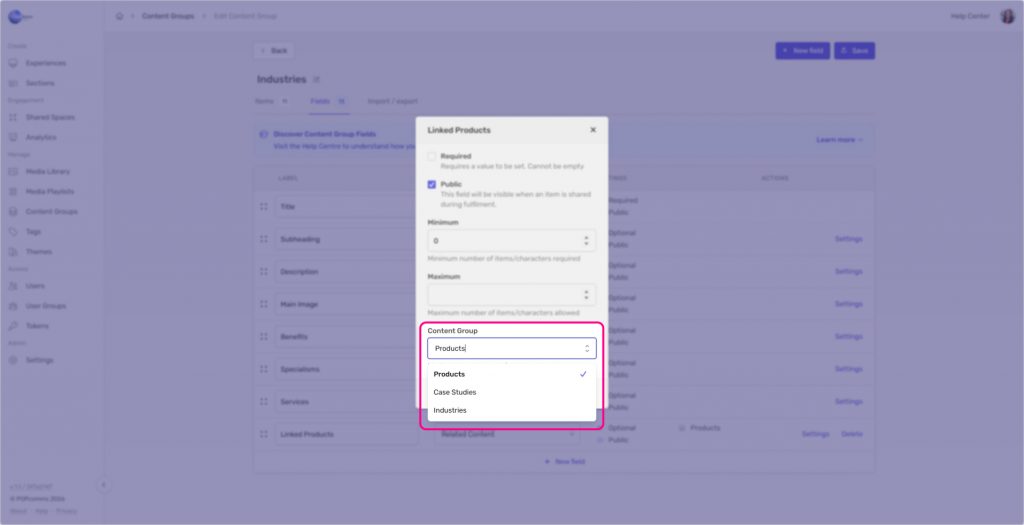
A settings window will open where you can choose which content group this field should link to. For example, if you’re creating a Linked Products field, select the Products content group.
Save your changes when you’re finished.
Linking content
Once the field has been created, it will appear on every item within that content group.
Open an item you want to edit and locate the Related Content field you created.
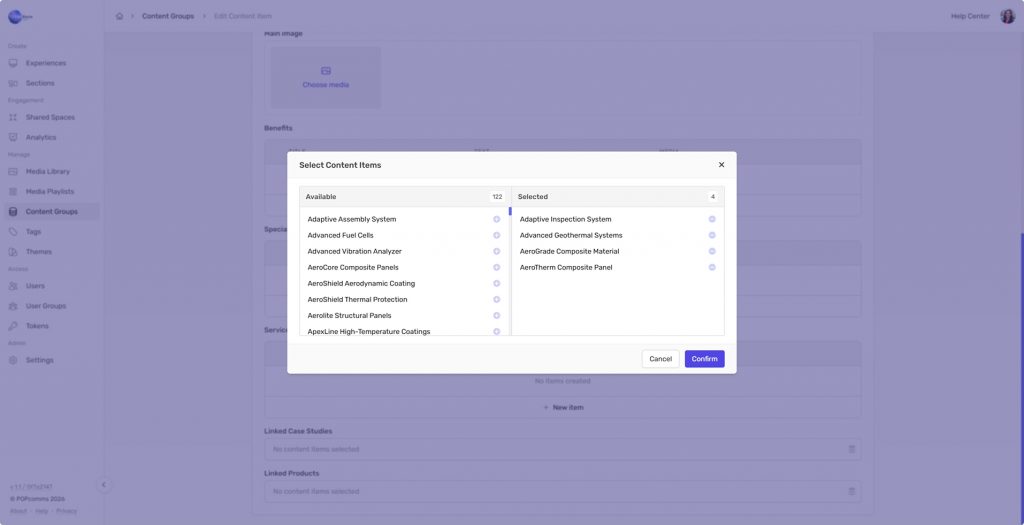
Click into the field to open the selection window.
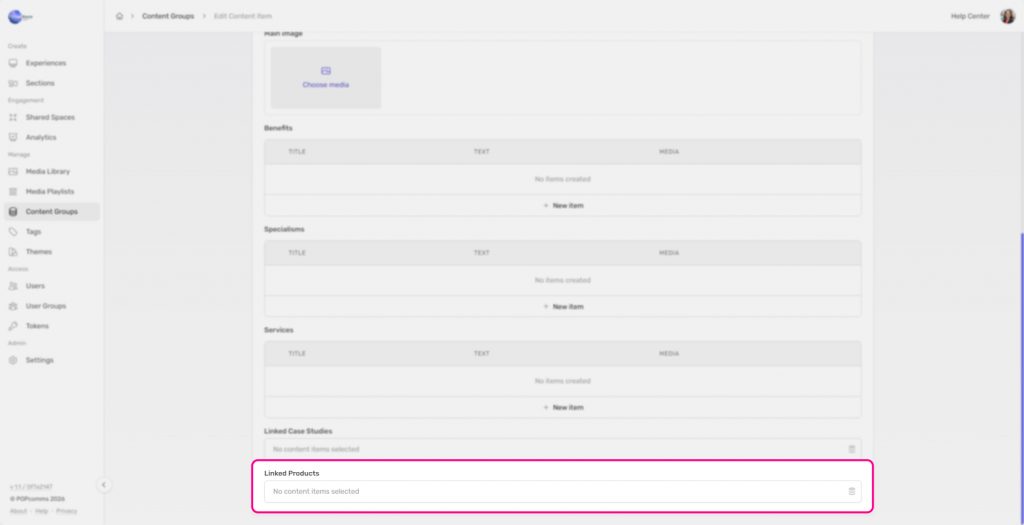
Choose one or more items from the linked content group.
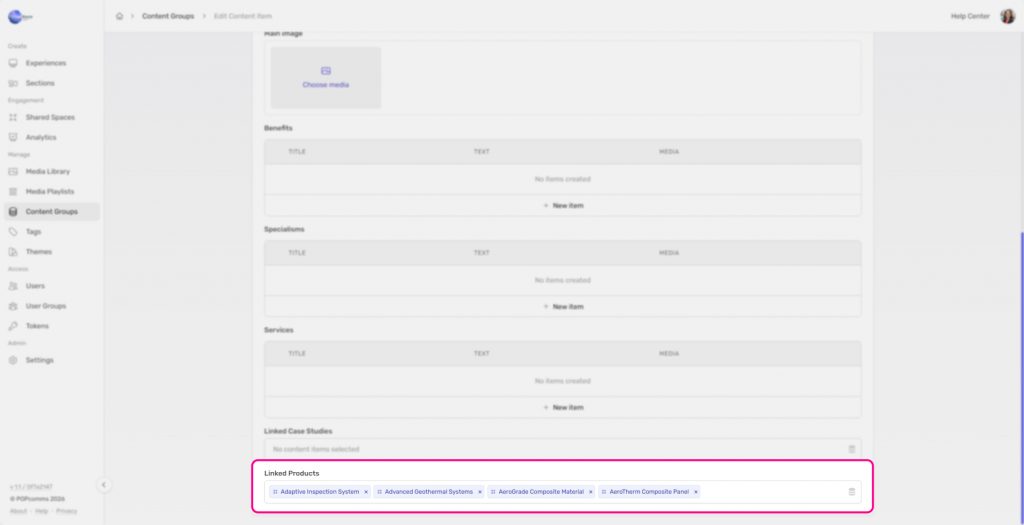
The selected items will now be associated with that content item, allowing you to build relationships between your different content groups.
Remember to save your changes.