

Theme hotspots let you create reusable styles for hotspots across your projects. You can define up to five styles within a single Theme, each with its own appearance settings.
Open the Hotspots Tab
Navigate to Themes from the Admin Panel and open the theme you want to edit or create a new one.
Select the Hotspots tab from the Theme categories on the left.
Choose a Style
The Hotspots tab displays Style 1 to Style 5 and a live preview of the currently selected style. Select a style to edit its settings.
Each style has a default configuration that you can customise to suit your theme.
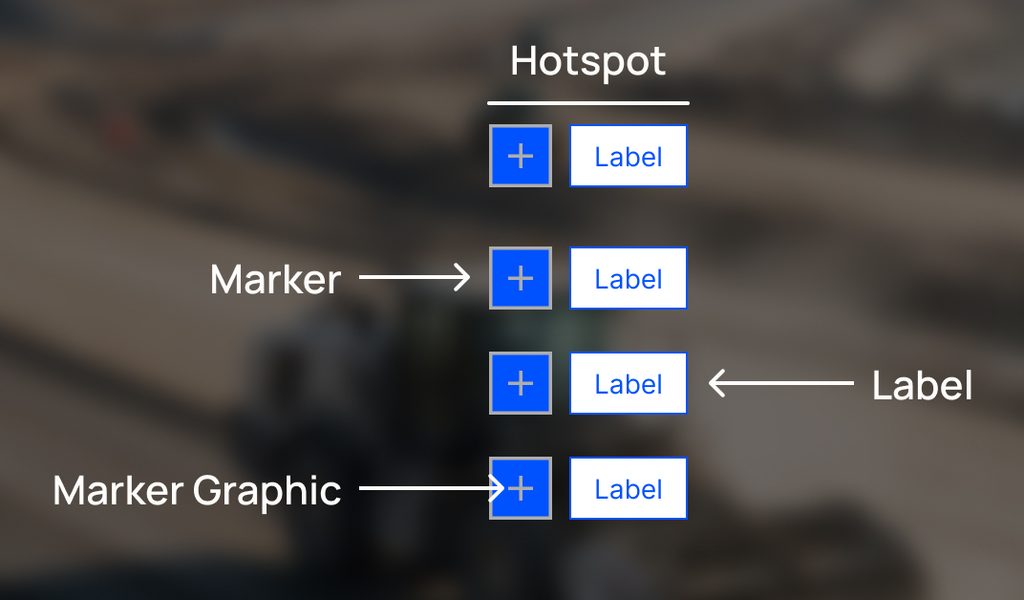
Hotspot Explained
Style the Marker
Style the Marker
You can configure the marker Background, Graphic and Border colours.
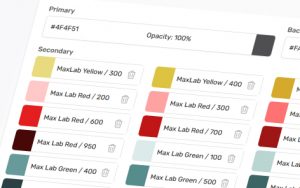
Colours are selected from the theme’s Colours tab.
You can also add a Custom Marker to replace the default plus icon.
You can also add a Custom Marker to replace the default plus icon.
Style the Label
You can configure the label Background, Text and Border colours.
Colours are selected from the theme’s Colours tab.
Set Border, Roundness and Shadow
These settings are applied to both the marker and the label. Each style includes settings for:
- Border — whether a colored border appears around the hotspot.
- Roundness — sets the shape of the hotspot elements.
- Shadow — toggles and sets the size of the shadow of the hotspot elements.
Configure Hover Colours
Set separate hover colors for the marker and label to define how the hotspot appears when the user hovers over it.
Use the live preview to check the normal and hover appearances.
Add a Custom Marker
Enable Custom Marker to replace the default plus icon with your chosen marker.
A custom marker configured in the theme provides the default marker for hotspots using that style. However, an icon assigned directly to an individual hotspot within a page takes priority over the style’s marker.
An SVG is recommended for custom markers for best results when scaling.
Apply the Style to a Hotspot
After configuring a style, apply it to an individual hotspot from the hotspot settings within the Section builder.
The hotspot uses the selected theme style unless an individual setting overrides it. For example, a colour assigned directly to the hotspot takes priority over the colour configured in the theme style.