The following information applies to these components



The Button block lets you add a clickable button to your page. Buttons can navigate users to another page, section, website or media item, or perform actions such as adding and removing items from a basket.
The appearance of a button is controlled by both the block settings and the active theme. This article explains how to configure an individual Button block. To change the overall button design used throughout your project edit your Experience’s Theme.
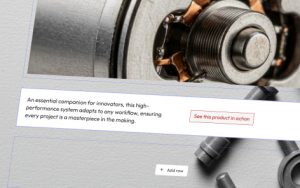
Add a Button Block
- Open the page where you want to add a button.
- Click then .
- Select and the Button.
Button Settings
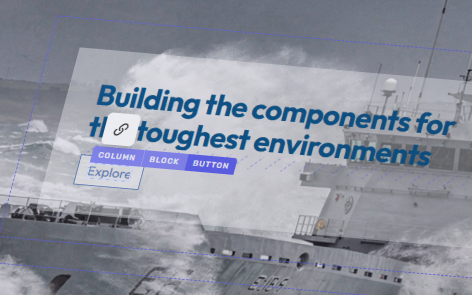
To access the button’s settings, click on the outer edge of the button and click the settings button: to display its settings.
Clicking on the text will allow you to add a link to the button.
Enter the Button Text
Use the Text field to enter the label displayed on the button. By default, the displayed text will be: Explore.
Choose clear, action-focused wording so users know what the button will do, for example Learn More, Start Now, or Continue.
Set the Alignment
Use the Alignment setting to position the button within its column.
Available options are:
- Left – aligns the button to the left side of the column.
- Centre – centres the button within the column.
- Right – aligns the button to the right side of the column.
Choose the Button Size
Use the Size setting to choose how large the button appears.
- Small
- Large
Choose Primary or Secondary Style
Use the Secondary toggle setting to use your selected theme’s secondary style instead of the default primary.
Button Functions
Add a Link
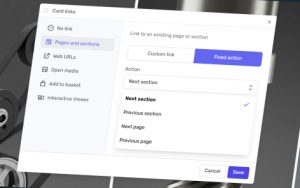
Buttons can be linked to a variety of destinations. Depending on your project, you can link a button to:
- Another page within the same or different section.
- An external website or URL.
- A media item within the Media Viewer or Interactive Viewer.
To set a destination, first select the textbox within the button and click the link button that appears to open the links page. If you link to an external website you can toggle whether the link opens in another tab or not and enable or disable caching.
Use a Button for Basket Actions
Instead of opening a destination, a button can perform basket actions.
Within the links page you can configure the button to add or remove an item from the basket, allowing users to manage their selections directly from the page.
When a basket action is selected, the button updates automatically as the basket state changes.
Customise Added and Removed Text
Basket buttons can display different text depending on whether the associated item is currently in the basket.
Configure the following text fields within the links panel :
- Add button – displayed when the item is not currently in the basket.
- Remove button – displayed after the item has been added to the basket.
Using different labels helps users understand the current state of the item and what action the button will perform next.