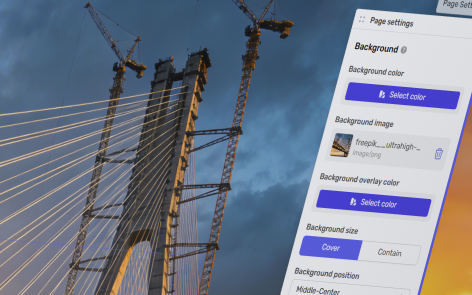
The platform allows you to set page backgrounds.
The following information applies to these components








Within Page Settings, the following example scenarios are available to you.
Set a background media item
Click “Select Media” to set your background.
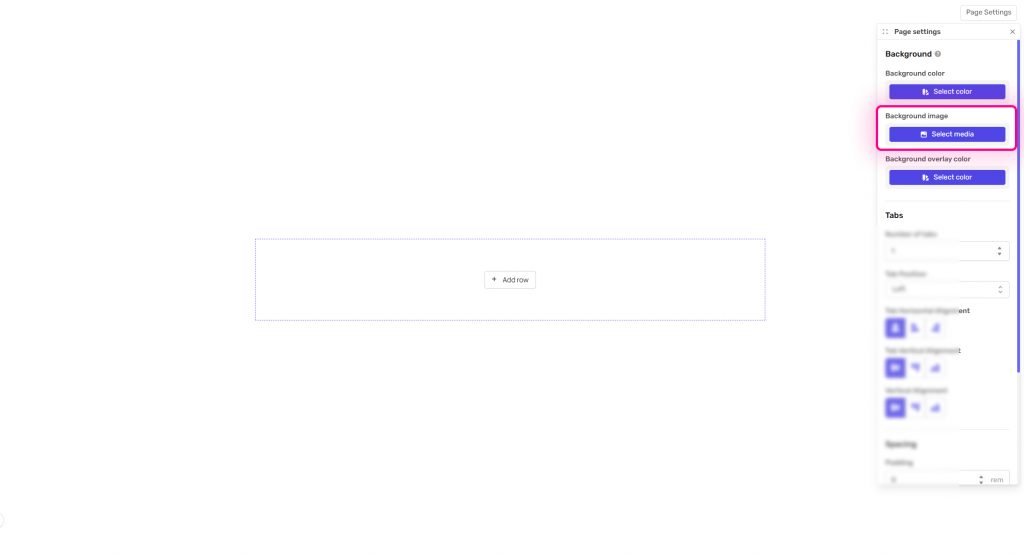
The Media Library Picker will allow you to select or upload a media asset. You can select from an image, a video, or an SVG graphic.

The chosen media item will be displayed. You can change the item used by clicking on the delete icon and then reselecting a media item.

Set an overlay
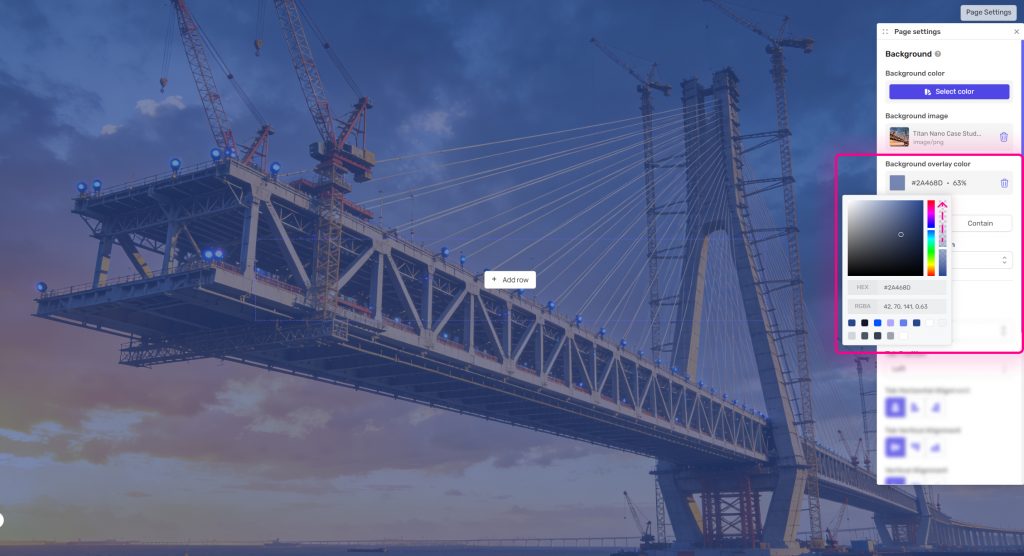
With a media item inserted into the background, you can set a color overlay over the item. Click on “background overlay color”.

From the color picker, select your overlay color. By default, opacity is set at 100%, so adjust this accordingly.
Use a background image with transparency
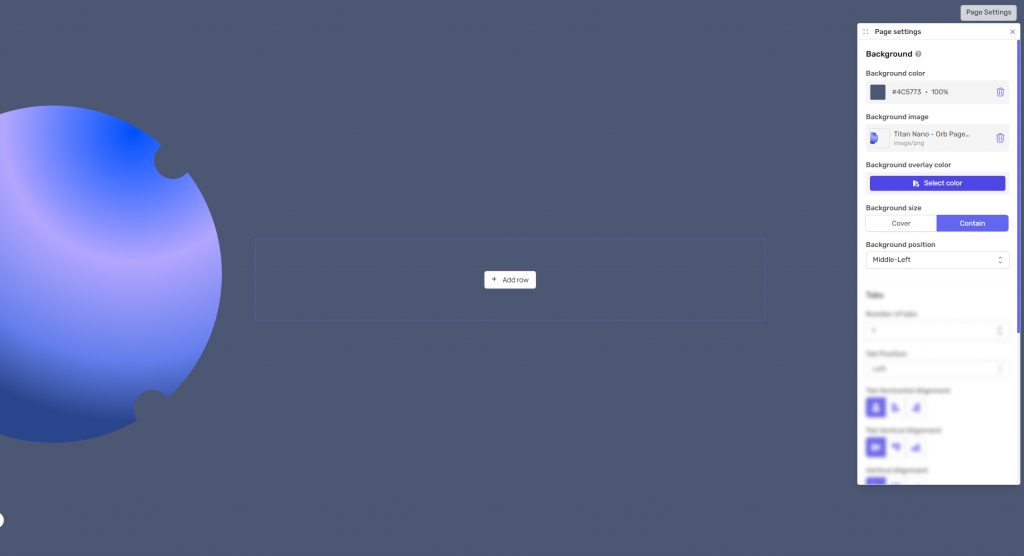
If you have an image that contains areas of transparency, such as a PNG or SVG graphic, then you can use a combination of background color and background image.
After selecting a background image, the options of “background size” and “background position” become available.
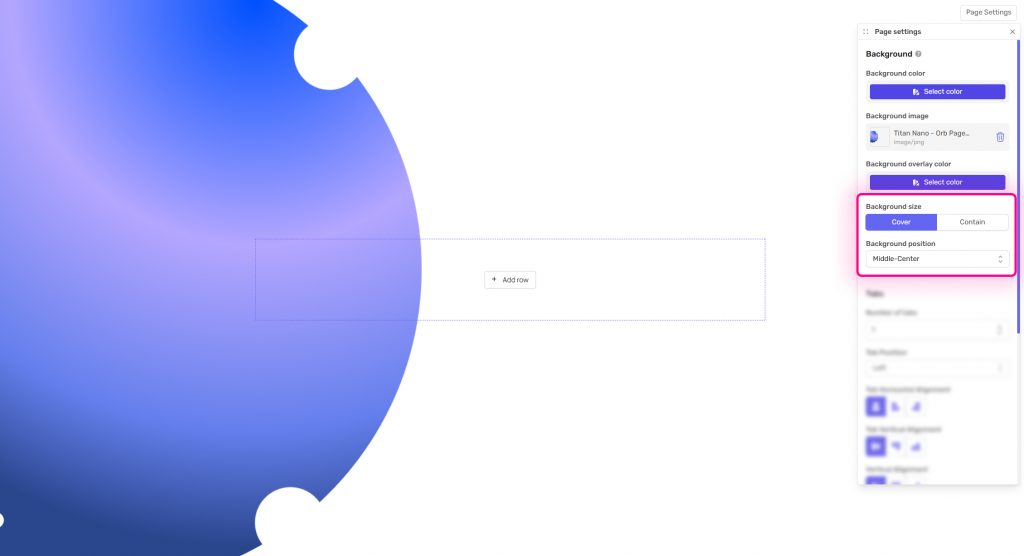
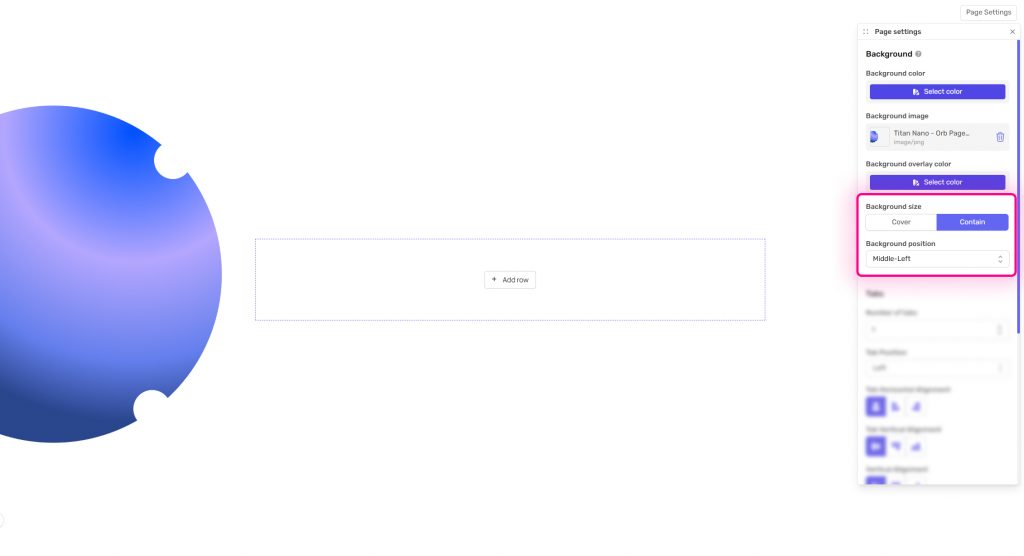
From here, within “background size” you can set an image from cover (where it fills the screen) to “contain” which ensures the image fits within its entirety within the screen.
You can also set where the image appears on the background using “background position”.
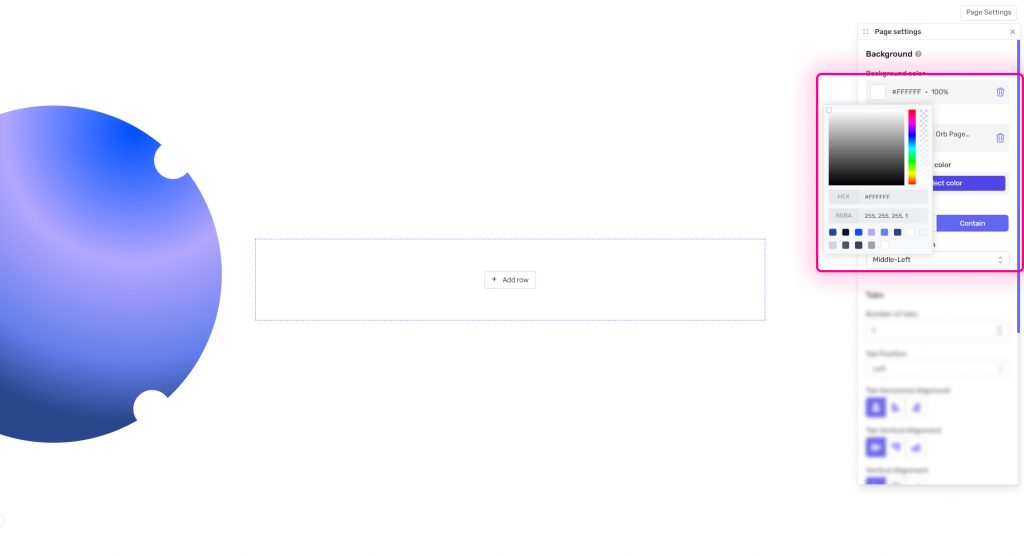
Setting a background color
To set a background color, click on “select color” under the heading “Background color”. This will open the color picker and allow you to select a color.
The background color will always appear behind the image, so if your image is not transparent or set to “cover”, then you will not see the color you have set.
Background Video
If you selected a background media item that is a video, it will be set to fullscreen, play automatically on loop without any controls.
Background layer ordering
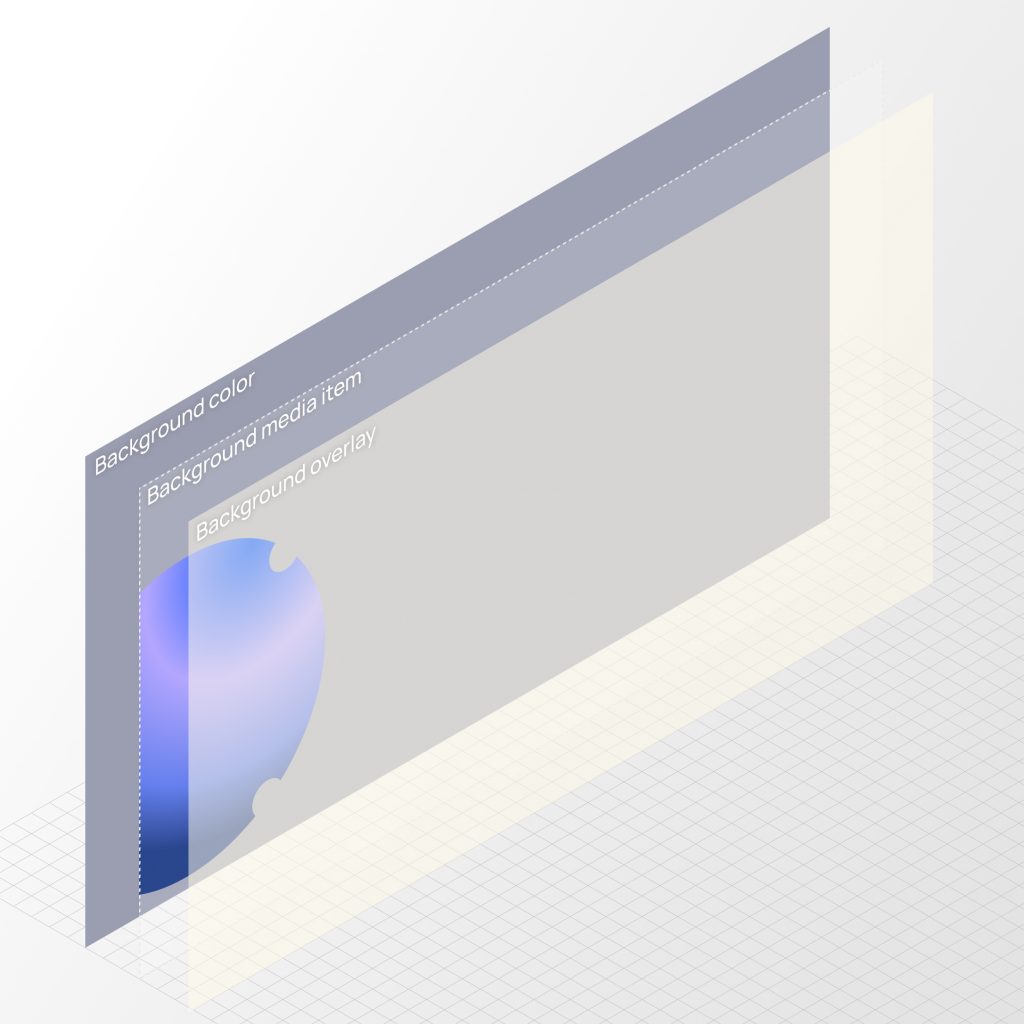
The order of the background layers is always as follows, from back to front:
- Background color
- Background media item
- Background overlay color