
The following information applies to these components

When adding content to the platform, you can either enter content manually or display content dynamically through automatic population.
Scenario A: Listing Products with Individual Detail Pages
Let’s say you want to display a collection of products, with a dedicated detail page for each one.
Manually Entering Content
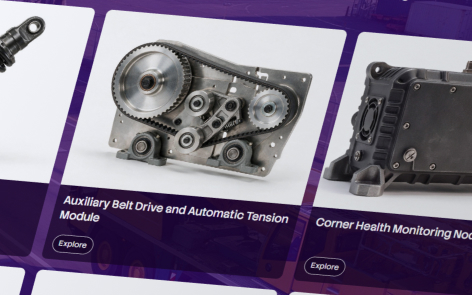
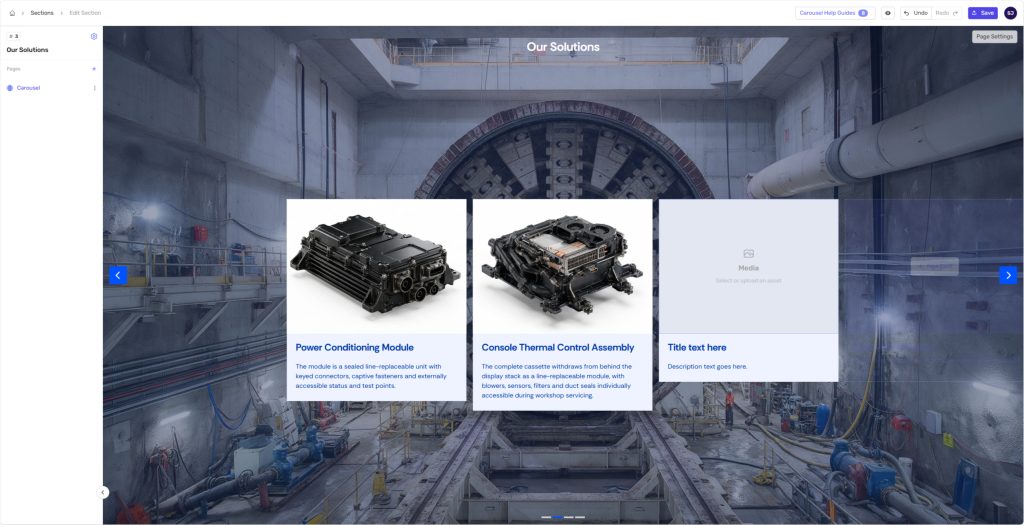
Start by inserting a Carousel. You’ll need to populate each card individually, adding an image, title and description for every product.
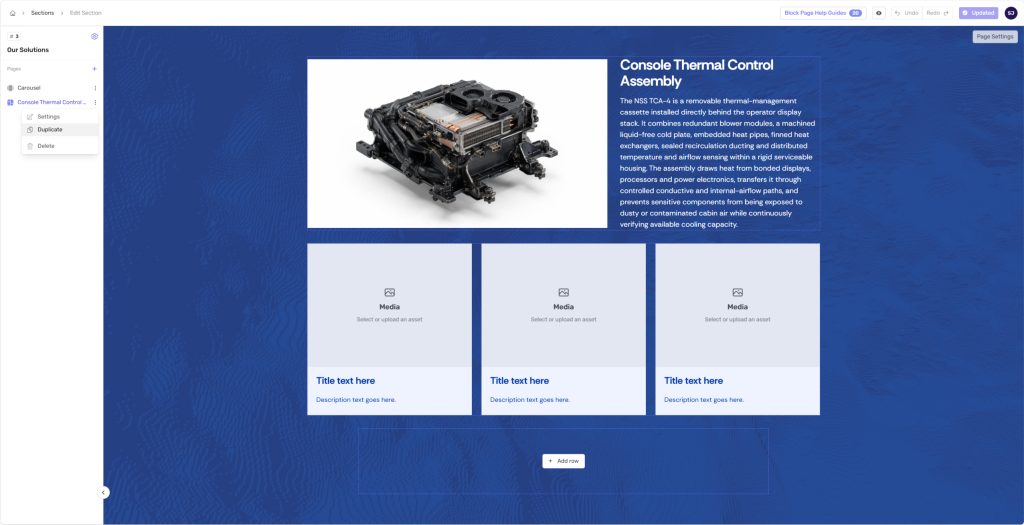
For each product’s detail page, you’ll need to add a Block Page, insert the blocks you want to use and populate them manually.
For subsequent products, you can duplicate the page and replace the content with the relevant images, text and other product information.
Because each product has its own page, any changes to the layout need to be made individually on every page.
Manual content is useful when:
- You have a small number of products.
- You want full control over each product’s page layout and design.
Manual content can become inefficient when:
- You have a large number of products.
- You need to make the same layout change across multiple product pages, such as adding a new section for PDF downloads.
Dynamic Content
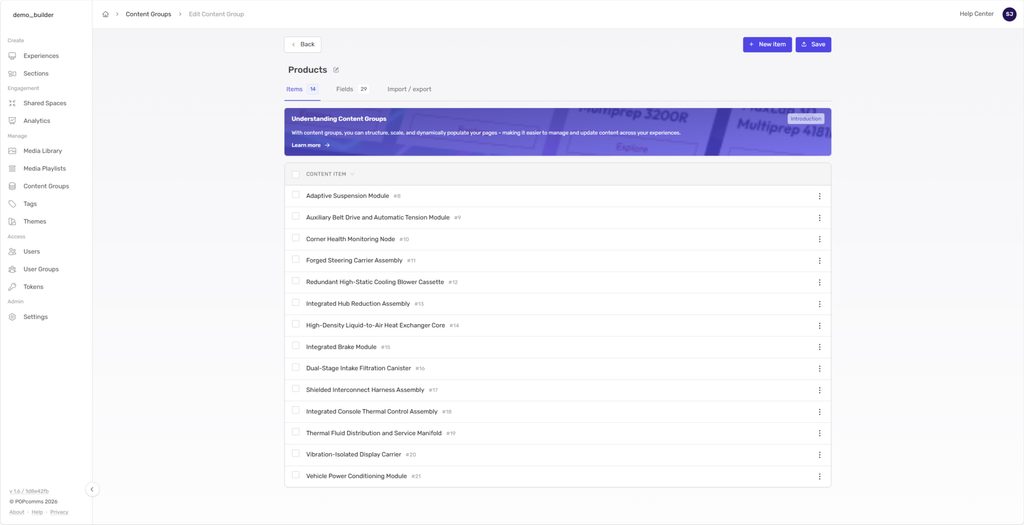
Instead of entering each product manually into a page, start by creating a Content Group containing all your products.
Next, insert a Grid into your section and select the Content Group. You can choose to display every item in the group or select specific products to feature.
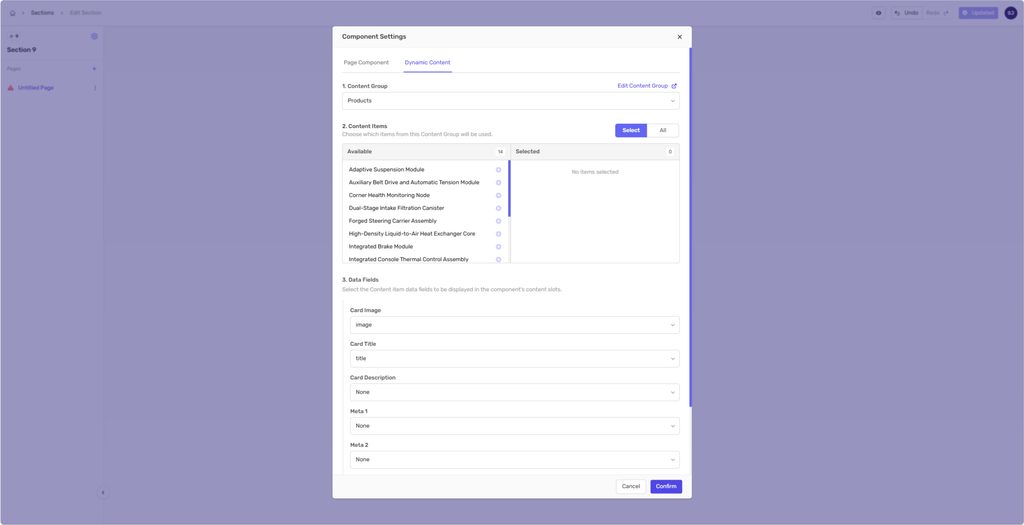
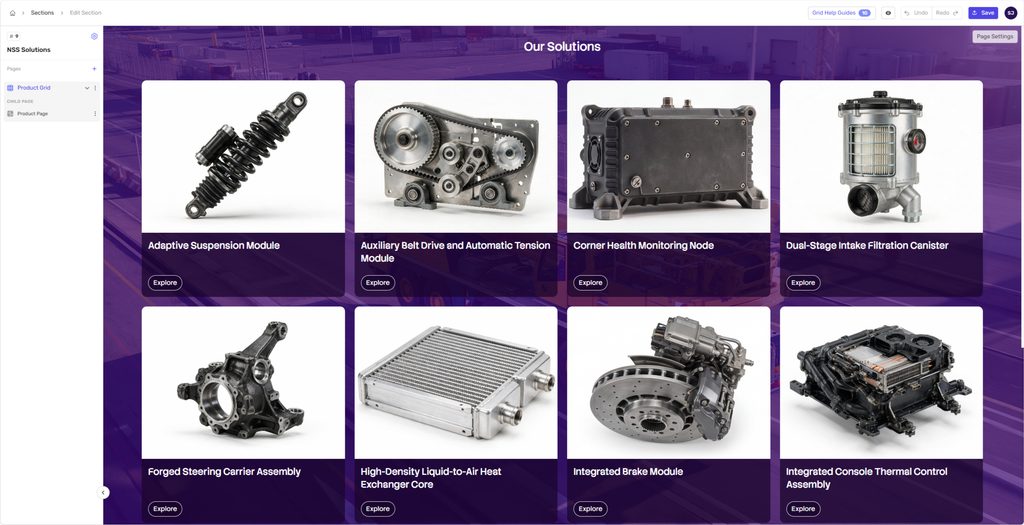
The Grid is then automatically populated with content from the selected products, without needing to create each card manually.
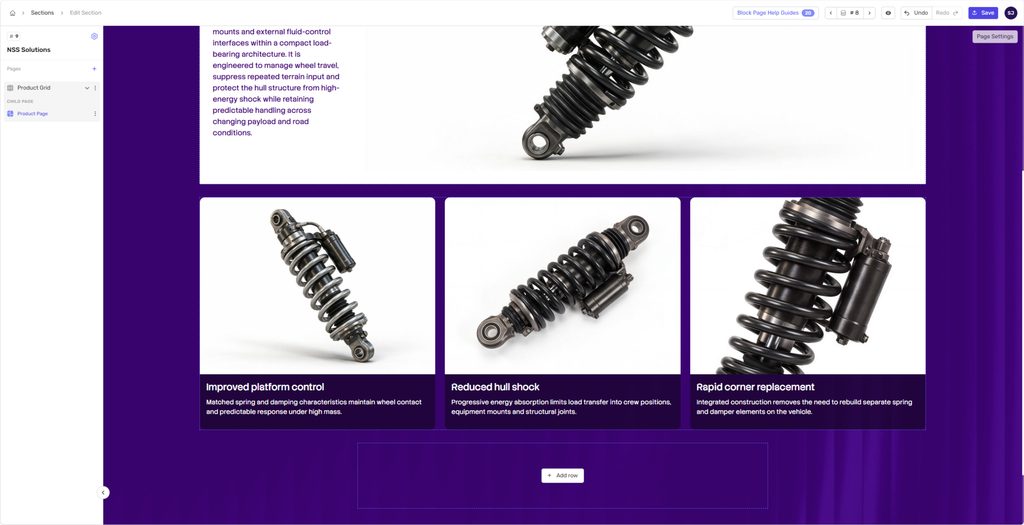
For the product detail pages, you only need to build one reusable page template.
When someone selects a product from the Grid, they’re taken to the product page, which automatically displays the content for the selected product in the template you create.
Rather than creating and maintaining a separate page for every product, you can manage the content through the Content Group and make layout changes in one place.
Dynamic content is useful when:
- You have a large number of products, case studies, services or other content items.
- You want to manage and update your content in one place.
- You want to reuse the same page layout without building each page individually.
Scenario B: Creating a product template
As well as being populated dynamically from a Grid, a Block Page can also be linked directly to an individual Content Group item.
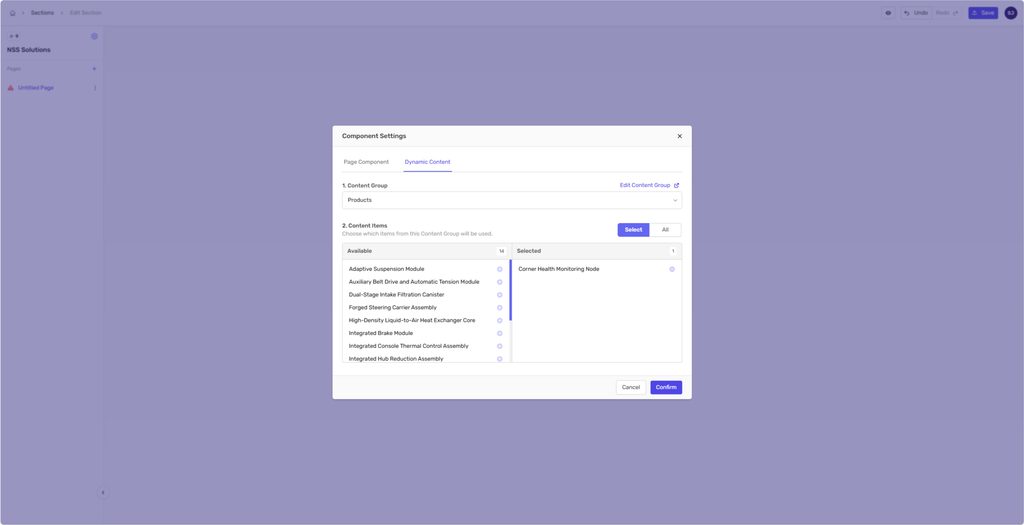
This allows you to create a page template, duplicate it, select the product you want to display, and repeat the process for as many products as you need.
Unlike using a single shared template, you can customise each duplicated page individually. You might remove blocks, change colours, add disclaimers or adjust the layout to suit a particular product.
Changes to the original template won’t be reflected in its duplicates, but duplicating a page and selecting the Content Group item to populate it with only takes seconds.
This gives you greater control over how each product is presented, while still allowing you to manage the underlying product content centrally through the Content Group.
You can also use different methods of navigation, such as a custom Grid. In this case, you’ll need to link the navigation elements to the relevant product pages manually.
This approach offers a middle ground between creating every page manually and using a single shared layout. Your product content is still populated dynamically, but you have the freedom to customise each page independently.