
Overview
The POPcomms Windows Kiosk App is designed to simplify the installation of a specific experience into kiosk mode.
To request a kiosk app installer for your experience, please use this form here, and a member of the team will be in touch.
Installation
You must allow sufficient time before any event or usage to fully install, download and test your experience.
We highly recommend having a physical keyboard available, either wired or wireless, connected to the machine running the experience to make exiting the app easier.
| No. | Step | Screenshot or Comment |
|---|---|---|
| 1 | Download the kiosk app installer from the link provided to you by the POPcomms team | Please note that you may see a download warning as per these instructions |
| 2 | Open the installer | |
| 3 | Confirm you understand the requirements to read the full documentation and perform a content download after install. | 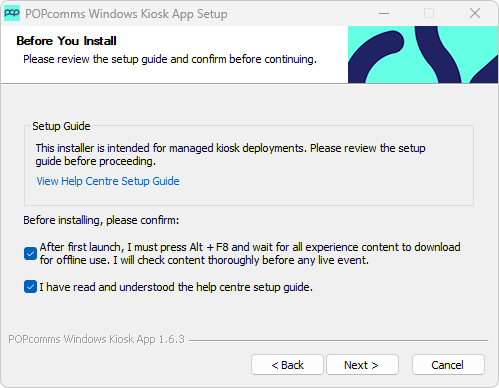 |
| 3 | Select “Only for me”, then click “Next” |  |
| 4 | Click “Install” (you do not need to change the destination location). |  Please note: the space required is for the Windows Kiosk App only. You will still need to allow additional space for the experience itself, and the amount needed will depend on the level of content within your experience. |
| 5 | To immediately run the experience, ensure that “Run POPcomms Windows Kiosk App” is checked, then click “Finish”. The app will then open in fullscreen kiosk mode. This will also create a shortcut on your desktop called “POPcomms”. |  |
| 6 | Once you have signed in or have access to your experience, initiate a full content download. To initiate a full content download – on the keyboard, press ALT + F8, which will close & reload the app. On reload, the full content download will commence. | For your experience to work offline, you must initiate a content download and wait for to complete in full. |
Keyboard Shortcuts
Learn keyboard shortcuts for kiosk control
Windows Kiosk App Release Notes
Version 1.4 – Introduced the ability to alter the page zoom / scaling through the config file, accessible through ALT+F2 shortcut.
Version 1.5 – On uninstall, removes all cached files.
Version 1.6 – Supports RFID Pairing with Nexmosphere devices
Version 1.6.2 – During install, prompts to read the help center guide; Config file opens as a .txt instead of .json